Install PowerShell 7.7 and Manage Repositories and Modules with DSCv3
Install PowerShell 7.7 and Manage Repositories and Modules with DSCv3
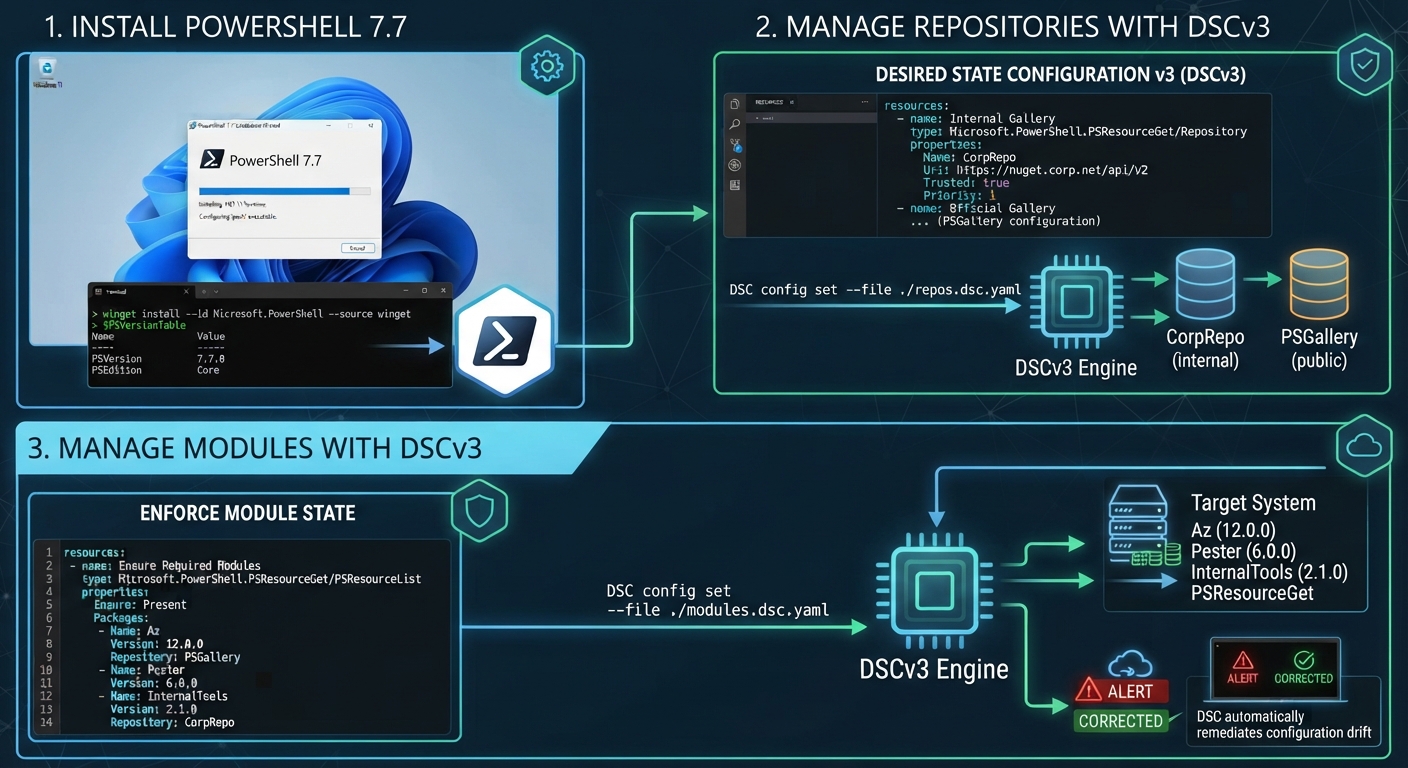
Installing PowerShell is only the first step when preparing an administration workstation or an automation server. We also need the right repositories, approved modules, and predictable module versions.
PowerShell 7.7.0, released on November 10, 2026, includes a useful update for this workflow:
Update
Microsoft.PowerShell.PSResourceGetto version 1.3.0-rc2 (#28363).
PSResourceGet already provides commands for registering repositories and installing PowerShell resources. Its bundled DSC resources let us describe that configuration in YAML and use export, test, and set operations instead of maintaining a collection of setup commands.
In this post, I will install PowerShell 7.7 on Windows and walk through an example that manages PowerShell Gallery and installs PowerShell.IGA.AccessGuard.
Version note: PowerShell 7.7.0 is a stable release, but the bundled PSResourceGet 1.3.0-rc2 package is a release candidate. The screenshots below were captured with DSC 3.4.0-preview.3. Treat that combination as a lab reference and validate it before production use.
1. Install PowerShell 7.7 on Windows
Install or upgrade with WinGet
On a Windows device with WinGet available, inspect the package first:
winget show --id Microsoft.PowerShell --exact --source winget
For a new installation:
winget install --id Microsoft.PowerShell --exact --source winget
For an existing WinGet-managed installation:
winget upgrade --id Microsoft.PowerShell --exact --source winget
These commands select the version currently offered by the source, not a permanently pinned 7.7.0 build. Check the displayed version before continuing. For the exact release discussed here, use the 7.7.0 release assets.
Important packaging change: Starting with PowerShell 7.7.0, Microsoft no longer provides MSI packages. WinGet installs the MSIX package. Do not reuse a PowerShell 7.6 MSI download URL with only the version changed.
For a manual installation, the release includes PowerShell-7.7.0.msixbundle. There are also ZIP packages for portable or side-by-side installations. Choose the correct architecture: x64, Arm64, or x86.
For example, to run the x64 ZIP build without replacing an existing PowerShell installation:
$uri = 'https://github.com/PowerShell/PowerShell/releases/download/v7.7.0/PowerShell-7.7.0-win-x64.zip'
$zip = Join-Path $env:TEMP 'PowerShell-7.7.0-win-x64.zip'
$destination = Join-Path $env:LOCALAPPDATA 'Programs\PowerShell\7.7.0'

Invoke-WebRequest -Uri $uri -OutFile $zip -ErrorAction Stop
Get-FileHash -Path $zip -Algorithm SHA256
Compare the hash with the value for that ZIP on the release page before extracting it:
Unblock-File -Path $zip
Expand-Archive -Path $zip -DestinationPath $destination -ErrorAction Stop
& (Join-Path $destination 'pwsh.exe') -NoProfile
The ZIP method does not automatically add that directory to PATH. Use the full executable path when launching it, and ensure child processes resolve the same PowerShell version.
Verify the new session
Open a new PowerShell 7.7 session, then check:
$PSVersionTable.PSVersion
$PSHOME
Get-Command pwsh -All | Select-Object Source
The version should be 7.7.0 for this walkthrough. PowerShell 7 runs alongside Windows PowerShell 5.1; opening powershell.exe still starts the older Windows PowerShell engine.
2. Install DSCv3 and discover the resources
The DSC CLI is a separate installation; installing PowerShell 7.7 does not install dsc.exe.
winget install --id Microsoft.DSC --exact --source winget
Open a new terminal if needed, then check:
dsc --version
dsc resource list
The WinGet command installs the version offered by that source. To reproduce the screenshot environment specifically, obtain 3.4.0-preview.3 from the DSC releases page and follow its installation instructions.
The two resource types needed here are:
| Resource type | Purpose |
|---|---|
Microsoft.PowerShell.PSResourceGet/Repository |
Manage a repository registration, including its URI, trust, and priority. |
Microsoft.PowerShell.PSResourceGet/PSResourceList |
Manage the requested PowerShell resources and their installation settings. |
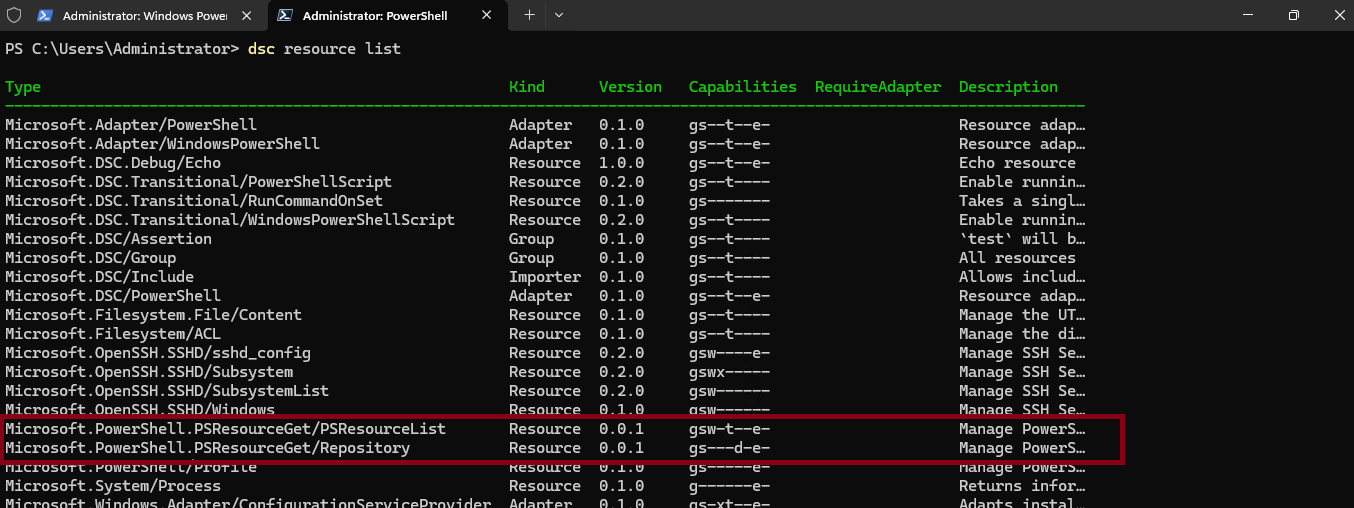
The 0.0.1 version shown beside these resources is their DSC manifest version, not the PSResourceGet module version.
If the resources are missing
First confirm that the pwsh executable resolved through PATH is the PowerShell 7.7 installation. The resource manifests launch pwsh as a child process.
If DSC still cannot discover the manifests, locate them under the bundled module and add their directory to the current process’s PATH:
$modulePath = Join-Path $PSHOME 'Modules\Microsoft.PowerShell.PSResourceGet'
$manifest = Get-ChildItem -LiteralPath $modulePath `
    -Filter 'psresourcelist.dsc.resource.json' -Recurse -ErrorAction Stop |
    Select-Object -First 1

if ($null -eq $manifest) {
    throw "PSResourceGet DSC manifests were not found under $modulePath."
}

$env:PATH = "$($manifest.DirectoryName);$PSHOME;$env:PATH"
dsc resource list 'Microsoft.PowerShell.PSResourceGet/*'
This changes only the current session and its child processes. Do not copy modules into the protected WindowsApps installation directory or hardcode a version-specific Store package path.
3. Export the current configuration
Before writing desired state, export what the resource currently discovers:
# Export repository

dsc resource export `
    --resource Microsoft.PowerShell.PSResourceGet/Repository

# Export resources

dsc resource export `
    --resource Microsoft.PowerShell.PSResourceGet/PSResourceList
Check the native command’s $LASTEXITCODE and any error output after each export before using the generated file.
For example, the supplied repository export contains this PowerShell Gallery registration:
$schema: https://aka.ms/dsc/schemas/v3/bundled/config/document.json
contentVersion: 1.0.0
resources:
- type: Microsoft.PowerShell.PSResourceGet/Repository
  name: Repository-0
  executionInformation:
    duration: PT0.4497876S
  properties:
    name: MicrosoftArtifactRegistry
    uri: https://mcr.microsoft.com/
    trusted: true
    priority: 40
    repositoryType: ContainerRegistry
    _exist: true
- type: Microsoft.PowerShell.PSResourceGet/Repository
  name: Repository-1
  executionInformation:
    duration: PT0.4497876S
  properties:
    name: PSGallery
    uri: https://www.powershellgallery.com/api/v2
    trusted: false
    priority: 50
    repositoryType: V2
    _exist: true
For example, the supplied repository export contains this PowerShell Resouce list:
$schema: https://aka.ms/dsc/schemas/v3/bundled/config/document.json
contentVersion: 1.0.0
resources:
- type: Microsoft.PowerShell.PSResourceGet/PSResourceList
  name: PSResourceList-0
  executionInformation:
    duration: PT0.6673167S
  properties:
    repositoryName: ''
    resources:
    - name: ''
      version: ''
      scope: AllUsers
      repositoryName: ''
      preRelease: false
      _exist: true
    - name: ''
      version: ''
      scope: CurrentUser
      repositoryName: ''
      preRelease: false
      _exist: true
The original export also contains MicrosoftArtifactRegistry. Keep only the registrations you intend to manage.
In PSResourceGet 1.3.0-rc2, these export implementations enumerate their state without applying an input filter. Passing --input '{"name":"PSGallery"}' or --input '{"repositoryName":"PSGallery"}' does not make these exports PSGallery-only.
Review exports rather than applying them blindly. In particular, the supplied module export contains empty names and versions. Those entries are not a useful installation baseline: replace them with explicit, reviewed module requirements and omit export timing metadata.
4. Declare the repository and module installation
The starting example requests PowerShell.IGA.AccessGuard version 1.0.0 from PSGallery with AllUsers scope.
Save the following as PSResourceList.dsc.yaml. It extends that example with an explicit repository registration, dependency ordering, and an installation-time trust decision:
$schema: https://aka.ms/dsc/schemas/v3/bundled/config/document.json
contentVersion: 1.0.0
metadata:
  Microsoft.DSC:
    requiredSecurityContext: elevated
resources:
  - name: PSGallery
    type: Microsoft.PowerShell.PSResourceGet/Repository
    properties:
      name: PSGallery
      uri: https://www.powershellgallery.com/api/v2
      trusted: false
      priority: 50
      repositoryType: V2
      _exist: true

  - name: PowerShell.IGA.AccessGuard
    type: Microsoft.PowerShell.PSResourceGet/PSResourceList
    dependsOn:
      - "[resourceId('Microsoft.PowerShell.PSResourceGet/Repository', 'PSGallery')]"
    properties:
      repositoryName: PSGallery
      trustedRepository: true
      resources:
        - name: PowerShell.IGA.AccessGuard
          version: "[concat('[', '1.0.0', ']')]"
          scope: AllUsers
          repositoryName: PSGallery
          preRelease: false
          _exist: true
Here is what matters:
- Repository registration:
_exist: truerequests that PSGallery be registered with the declared settings. - Ordering:
dependsOnmakes repository configuration precede module installation duringset. - Version: The DSC
concat()expression produces the NuGet exact-version range[1.0.0]. Using an expression avoids confusing that bracketed range with a DSC function expression. A bare'1.0.0'is a minimum-version range, not an exact pin. - Scope:
AllUsersrequires an elevated PowerShell session. For a per-user configuration, useCurrentUserand remove the elevated security-context requirement. - Prerelease:
preRelease: falseapplies to AccessGuard, not to the PSResourceGet package managing it. - Presence: The module’s
_exist: truerequests installation. Changing it tofalserequests removal, so review such changes carefully.
Make repository trust an explicit decision
The repository remains registered with trusted: false, matching the supplied export. The separate trustedRepository: true property authorizes this module-installation operation to proceed without an interactive trust prompt.
That flag does not validate the publisher or audit the package. Review the module and its dependencies before using this example. For an organizational baseline, prefer your approved feed and approved versions.
If installation is needed and neither the repository registration nor the operation is trusted, rc2 refuses the unattended installation. A successful compliance test alone does not establish that a later installation will pass its trust checks.
5. Test, apply, and test again
Run the following from the directory containing the YAML document. For this AllUsers example, use an elevated PowerShell 7.7 session and repeat any session-only discovery-path setup there.
First, inspect compliance without applying changes:
dsc config test --file .\PSResourceList.dsc.yaml
Check each resource’s inDesiredState, differingProperties, messages, and the overall hadErrors value. A completed command does not automatically mean the machine is compliant.
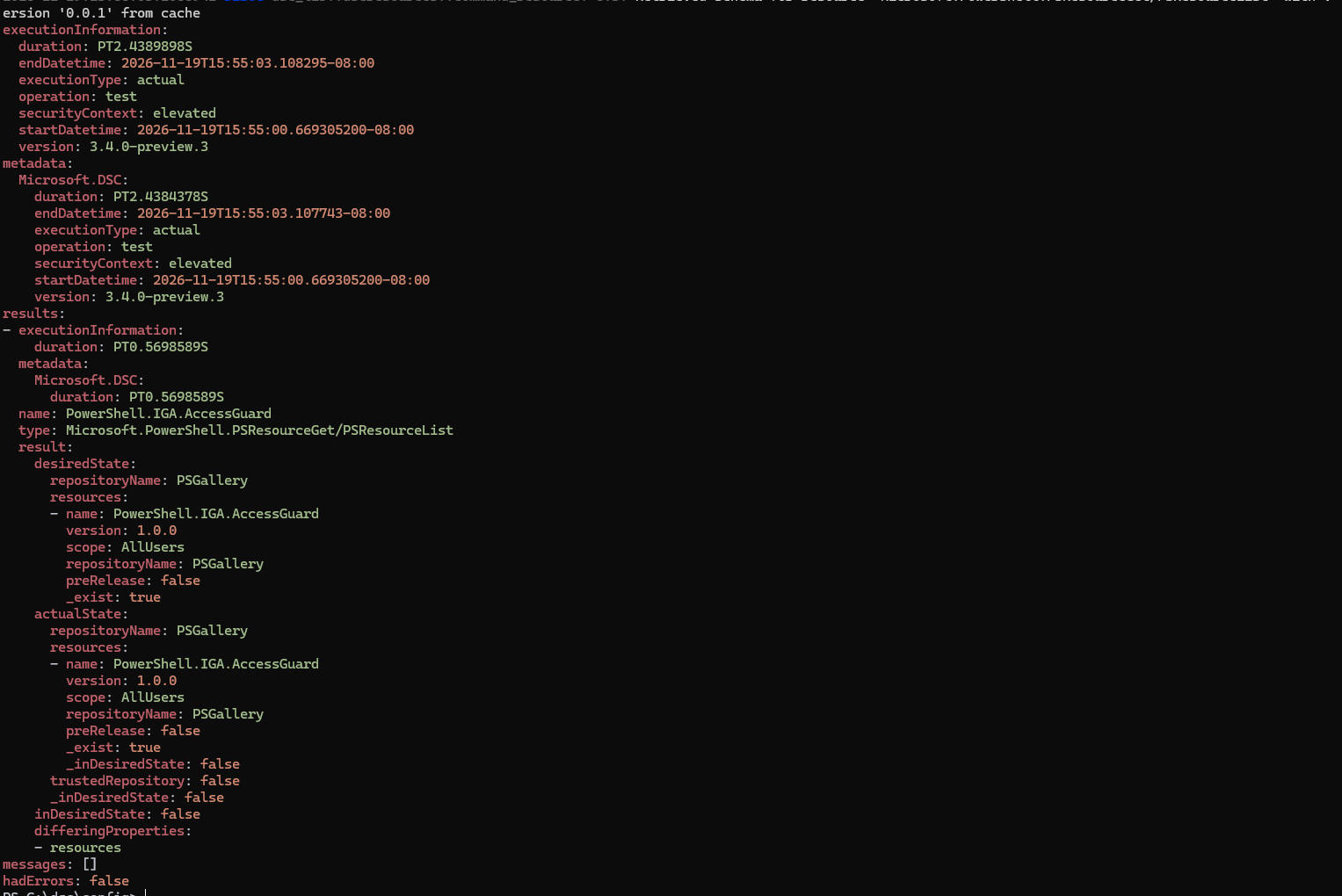
Despite the screenshot filename, the visible output is a test result: it shows inDesiredState: false, differingProperties: resources, and hadErrors: false. That means the test ran without a reported execution error but the resource reported drift. It is not proof of a successful installation.
After reviewing the requested changes, apply them:
dsc config set --file .\PSResourceList.dsc.yaml
Then verify again:
dsc config test --file .\PSResourceList.dsc.yaml

Get-InstalledPSResource -Name PowerShell.IGA.AccessGuard -Scope AllUsers |
    Select-Object Name, Version, Repository, InstalledLocation
Expect the follow-up DSC test to report the managed resources in the desired state, with no execution errors. Confirm that the installed module version is 1.0.0. If either check disagrees, investigate rather than treating set as sufficient evidence of success.
If installation fails, check:
- The repository is registered and reachable from the account executing DSC.
- The requested module version exists in that repository.
- Repository trust has been explicitly approved.
- The session has permissions for the requested installation scope.
- DSC resolves the intended manifests and PowerShell executable.
What this automates, and what it does not
This workflow gives us a reviewable declaration of repository settings and module requirements. It is useful for workstation setup, repeatable automation-host preparation, and configuration checks in a deployment pipeline.
It does not install a background compliance service. DSCv3 runs when invoked; scheduling repeated checks and remediation remains the responsibility of your task scheduler, pipeline, or configuration-management platform.
Also, installing a pinned module does not mean every other installed version is removed. Do not assume that this document creates an exclusive module inventory.
For me, the useful change is the workflow: export the current state, declare the approved state, test it, apply it, and verify it again. PowerShell 7.7 brings the relevant PSResourceGet package into the installation; DSC supplies the configuration runner..
References
- PowerShell releases
- PowerShell 7.7.0 release notes and downloads
- PR #28363: Update bundled PSResourceGet to 1.3.0-rc2
- PSResourceGet 1.3.0-rc2 release notes
- PSResourceGet DSC manifests and implementation at 1.3.0-rc2
- Install PowerShell on Windows
- DSC overview
- DSC 3.4.0-preview.3 release used in the screenshots