Build and Deploy an Azure Guest Configuration (DSC) using Azure Policy.
Build and Deploy an Azure Guest Configuration Policy
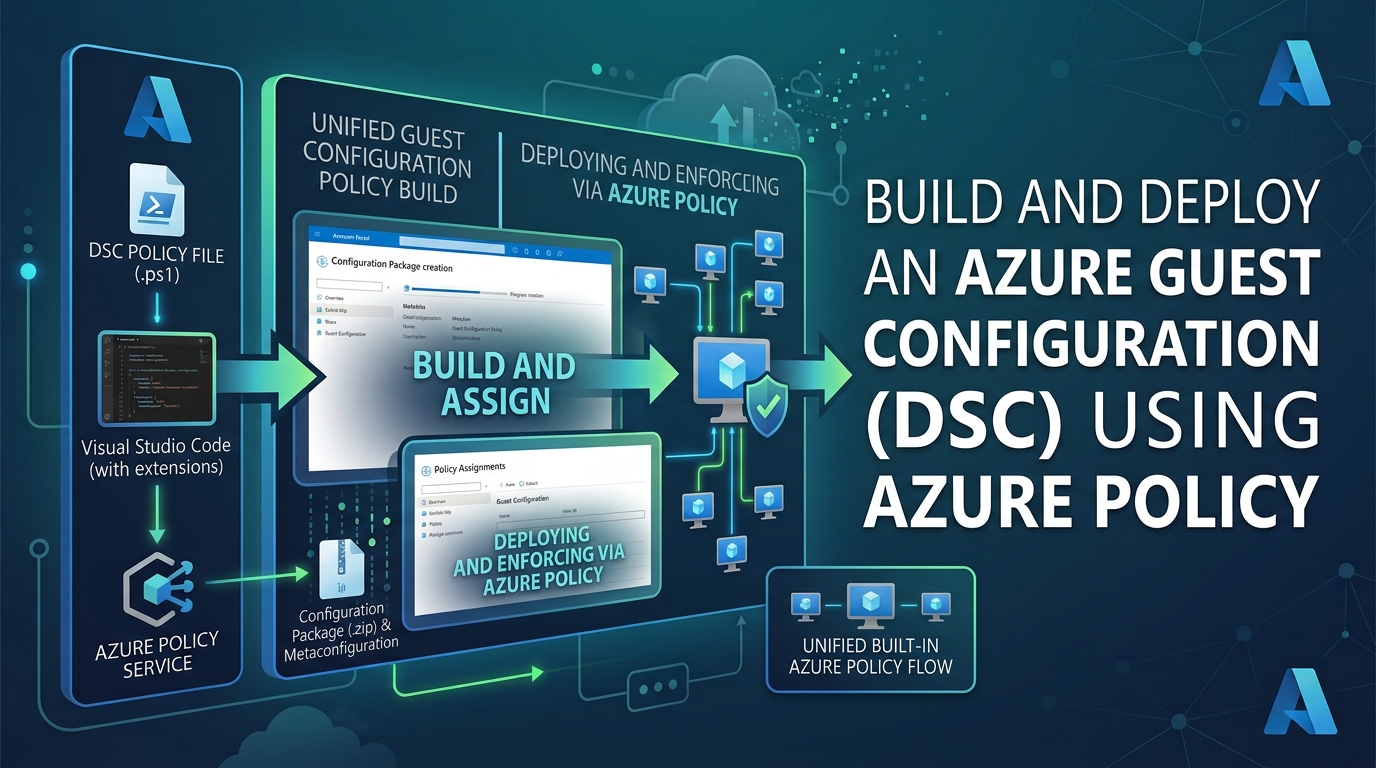
Azure Guest Configuration extends Azure Policy into the operating system of an Azure virtual machine or an Azure Arc-enabled server. Azure Policy can therefore check a Windows feature, registry value, service, or other DSC-managed setting inside the guest operating system.
This article uses the AzureDay example from the blog examples repository. The example compiles a DSC configuration that installs IIS and the IIS Management Console, packages it as web_iis_install.zip, and creates two policy definitions:
| Policy | Guest Configuration mode | Result |
|---|---|---|
| IIS audit policy | Audit |
Reports non-compliant machines without changing them. |
| IIS deployment policy | ApplyAndAutoCorrect |
Installs the missing features and corrects configuration drift. |
Warning: Test an
ApplyAndAutoCorrectpolicy on a test VM first. It can change the operating system on every machine in its assignment scope.
How the workflow fits together
The solution has four artifacts and three Azure operations:
- A DSC source script is compiled to a MOF document.
- The MOF is packaged with its required DSC resources.
- The ZIP is uploaded to HTTPS-accessible Azure Blob Storage.
New-GuestConfigurationPolicygenerates an Azure Policy definition JSON file.New-AzPolicyDefinitionpublishes that JSON as a policy definition.- An Azure Policy assignment applies the policy to a VM, resource group, subscription, or management group.
The package is downloaded by the Guest Configuration extension on the target machine. The extension then evaluates the DSC resources locally and reports the result to Azure Policy.
What needs to be installed
Run the build commands in PowerShell 7 on a Windows authoring computer. Run PowerShell 7 as Administrator when creating or validating Windows DSC packages.
Install the modules used by the example:
Install-Module -Name PSDscResources -Scope CurrentUser -Force
Install-Module -Name GuestConfiguration -Scope CurrentUser -Force
Install-Module -Name Az.Accounts -Scope CurrentUser -Force
Install-Module -Name Az.Resources -Scope CurrentUser -Force
Install-Module -Name Az.Storage -Scope CurrentUser -Force

Get-Module -ListAvailable -FullyQualifiedName PSDscResources, GuestConfiguration
PSDscResources supplies the WindowsFeature resource used by dsc-web.ps1. GuestConfiguration provides New-GuestConfigurationPackage, Get-GuestConfigurationPackageComplianceStatus, and New-GuestConfigurationPolicy. Az.Accounts, Az.Resources, and Az.Storage are used for authentication, policy publication, and package upload.
The target environment also needs:
- The
Microsoft.GuestConfigurationresource provider registered in the subscription. - A supported Windows Azure VM or Azure Arc-enabled server.
- The Guest Configuration extension or Arc agent enabled on the target. The machine configuration extension must be able to download the package over HTTPS.
- Permissions to register the provider, upload to the storage account, create policy definitions, and assign policies at the chosen scope.
- A package URI reachable by the target machines. A blob SAS URL is convenient for testing; use a durable, controlled access design for production.
For the Azure-side VM preparation, including the required Guest Configuration extension, identity, and resource provider setup, see Azure Custom Guest Configuration with PowerShell DSC and Azure Guest Configuration. Complete that setup before assigning the deployment policy described in this article.
Register the provider once per subscription:
Register-AzResourceProvider -ProviderNamespace Microsoft.GuestConfiguration
Get-AzResourceProvider -ProviderNamespace Microsoft.GuestConfiguration
Connect to Azure
Sign in with an account or service principal that has access to both the storage account and the policy scope. Select the subscription where the package is stored and the policy will be published:
$tenantId = '<tenant-id>'
$subscriptionId = '<subscription-id>'

Connect-AzAccount -Tenant $tenantId
Set-AzContext -Subscription $subscriptionId
Get-AzContext
For automation, use a federated identity or managed identity rather than storing a password or a long-lived secret in the script. The identity needs storage data access for the upload and policy permissions at the publication and assignment scopes.
Compile the DSC configuration
The source file is DSC/AzureDay-example/dsc-web.ps1:
Configuration web_iis_install {
	Import-DscResource -Module PSDesiredStateConfiguration

	WindowsFeature IIS {
		Ensure = 'Present'
		Name   = 'Web-Server'
	}

	WindowsFeature IIS_Managment_tools {
		Ensure    = 'Present'
		Name      = 'Web-Mgmt-Console'
		DependsOn = '[WindowsFeature]IIS'
	}
}

web_iis_install
Compile it from the GuestConfiguration directory. The output must contain a file named web_iis_install.mof; the package name and configuration name are intentionally identical.
Set-Location 'C:\Users\mmach\OneDrive\Skrypty\DSC\AzureDay-example\GuestConfiguration'
& '..\dsc-web.ps1'

Test-Path '.\web_iis_install\web_iis_install.mof'
If the configuration is compiled in a different directory, adjust the path. Do not use a MOF generated from a different configuration when building this package.
Build and validate the package
Create an AuditAndSet package for deployment. The Configuration path points to the compiled MOF, not to the source .ps1 file:
$packageParameters = @{
	Name          = 'web_iis_install'
	Configuration = '.\web_iis_install\web_iis_install.mof'
	Type          = 'AuditAndSet'
	Force         = $true
}

New-GuestConfigurationPackage @packageParameters

$packageHash = Get-FileHash -Path '.\web_iis_install.zip' -Algorithm SHA256
$packageHash
Get-GuestConfigurationPackageComplianceStatus -Path '.\web_iis_install.zip'
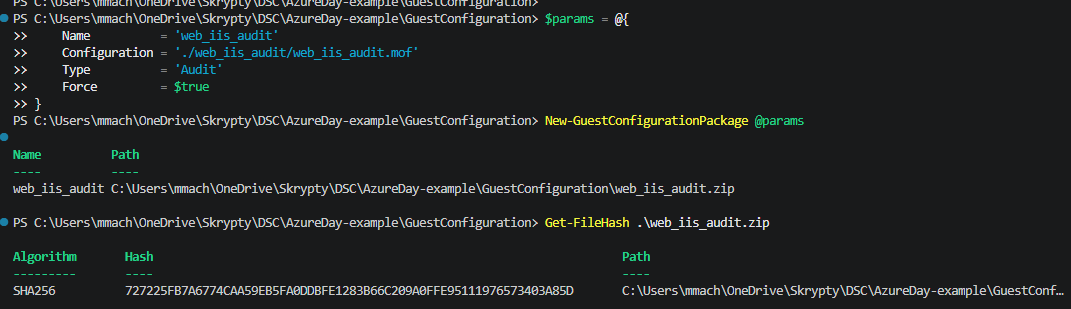
The command creates web_iis_install.zip. The ZIP contains the MOF and the DSC resource files needed by the Guest Configuration extension. Keep the SHA-256 hash: it identifies the exact package that the policy is allowed to download.
For an audit-only package, use Type = 'Audit' instead. An audit package observes the machine but does not install IIS.
Upload the package
The policy does not embed the ZIP. It stores an HTTPS content URI, so upload the package to a blob container that the target machines can reach:
$storageAccountName = '<storage-account-name>'
$storageResourceGroup = '<storage-resource-group>'
$containerName = 'dsc'
$blobName = 'web_iis_install.zip'

$storageContext = New-AzStorageContext -StorageAccountName $storageAccountName -UseConnectedAccount
Set-AzStorageBlobContent `
	-File '.\web_iis_install.zip' `
	-Container $containerName `
	-Blob $blobName `
	-Context $storageContext `
	-Force

$contentUri = "https://$storageAccountName.blob.core.windows.net/$containerName/$blobName"
$contentUri
If the container is private, append a read-only SAS token to $contentUri or use the access method supported by the target environment. Never commit a real SAS token to the repository or blog. Test the final URI from a network location comparable to the target VM:
Invoke-WebRequest -Uri $contentUri -Method Head
When a package changes, upload a new artifact and increase PolicyVersion. A new hash with an unchanged policy version can make troubleshooting confusing.
Build and publish the policy definitions
The example script is DSC/AzureDay-example/Policy/GuestConfig_policy.ps1. It calls New-GuestConfigurationPolicy twice, once for each mode, and then publishes the generated JSON with New-AzPolicyDefinition.
Before running it, replace the placeholder content URI with the URI of the uploaded package. Keep the URI out of source control when it contains a SAS token:
Set-Location 'C:\Users\mmach\OneDrive\Skrypty\DSC\AzureDay-example\Policy'

$contentUri = '<https-package-uri-for-web_iis_install.zip>'
$policyVersion = '1.0.0'

$auditPolicyParameters = @{
	PolicyId          = [Guid]::NewGuid()
	ContentUri        = $contentUri
	DisplayName       = 'IIS audit policy'
	Description       = 'Audits whether IIS and the IIS Management Console are installed.'
	Path              = '.\policies\web_iis_install_auditIfNotExists.json'
	Platform          = 'Windows'
	PolicyVersion     = $policyVersion
	Mode              = 'Audit'
	ExcludeArcMachines = $true
}

New-GuestConfigurationPolicy @auditPolicyParameters
New-AzPolicyDefinition `
	-Name 'IIS Audit policy' `
	-Policy '.\policies\web_iis_install_auditIfNotExists.json'

$deploymentPolicyParameters = @{
	PolicyId          = [Guid]::NewGuid()
	ContentUri        = $contentUri
	DisplayName       = 'IIS deployment policy'
	Description       = 'Installs IIS and corrects IIS configuration drift.'
	Path              = '.\policies\web_iis_install_DeployIfNotExists.json'
	Platform          = 'Windows'
	PolicyVersion     = $policyVersion
	Mode              = 'ApplyAndAutoCorrect'
	ExcludeArcMachines = $true
}

New-GuestConfigurationPolicy @deploymentPolicyParameters
New-AzPolicyDefinition `
	-Name 'IIS Deployment policy' `
	-Policy '.\policies\web_iis_install_DeployIfNotExists.json'
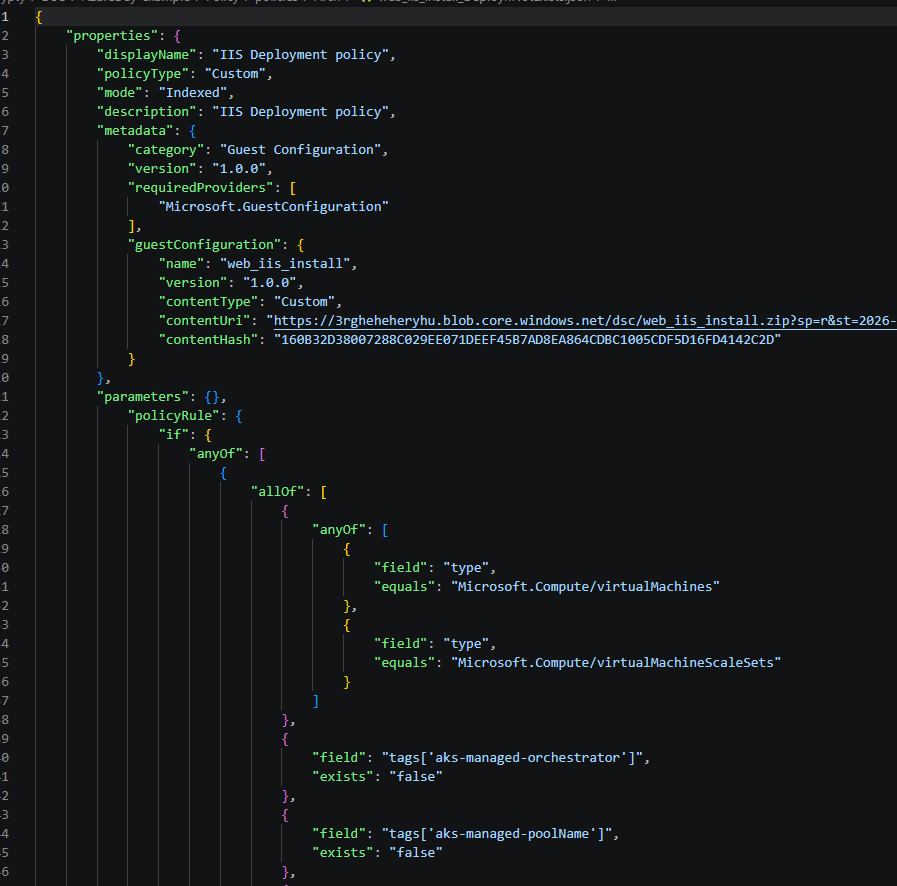
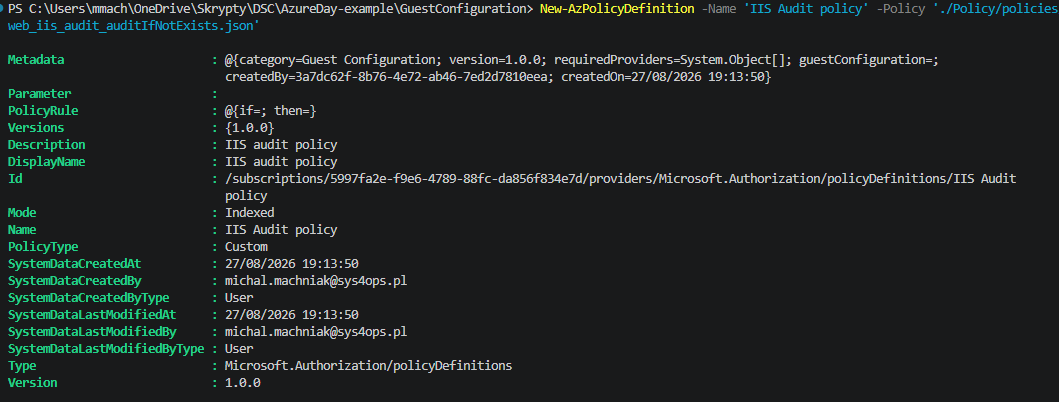
The generated files in Policy\policies are ARM policy definition documents. Mode controls the guest behavior. ExcludeArcMachines = $true means the generated policy targets Azure VMs and excludes Azure Arc machines; set it according to your intended scope and test the resulting JSON before publishing it broadly.
The original example uses a generated GUID for each policy. Keep each PolicyId stable when updating an existing definition, or deliberately create a new definition when introducing a separate policy. Do not reuse one policy ID for both audit and deployment modes.
Assign the policy
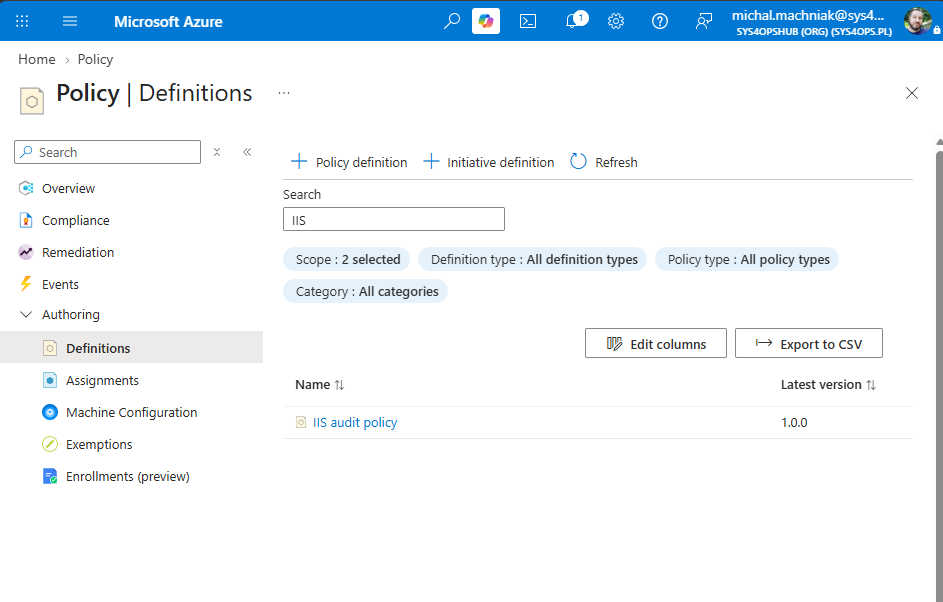
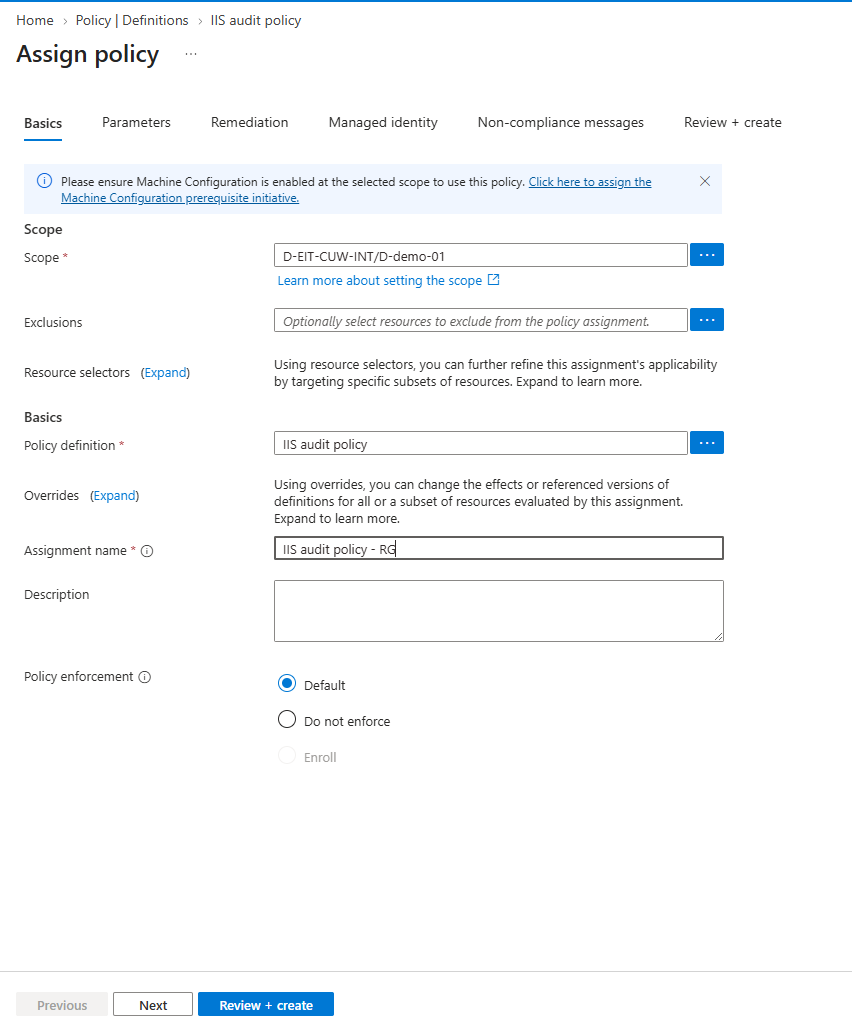
Publishing a policy definition does not apply it to resources. Create an assignment at the required scope. Start with one test resource group or VM:
$policy = Get-AzPolicyDefinition -Name 'IIS Deployment policy'
$scope = '/subscriptions/<subscription-id>/resourceGroups/<resource-group-name>'

New-AzPolicyAssignment `
	-Name 'IIS Deployment policy assignment' `
	-DisplayName 'IIS Deployment policy assignment' `
	-PolicyDefinition $policy `
	-Scope $scope
Use the audit definition first when you need visibility without remediation:
$auditPolicy = Get-AzPolicyDefinition -Name 'IIS Audit policy'

New-AzPolicyAssignment `
	-Name 'IIS Audit policy assignment' `
	-DisplayName 'IIS Audit policy assignment' `
	-PolicyDefinition $auditPolicy `
	-Scope $scope
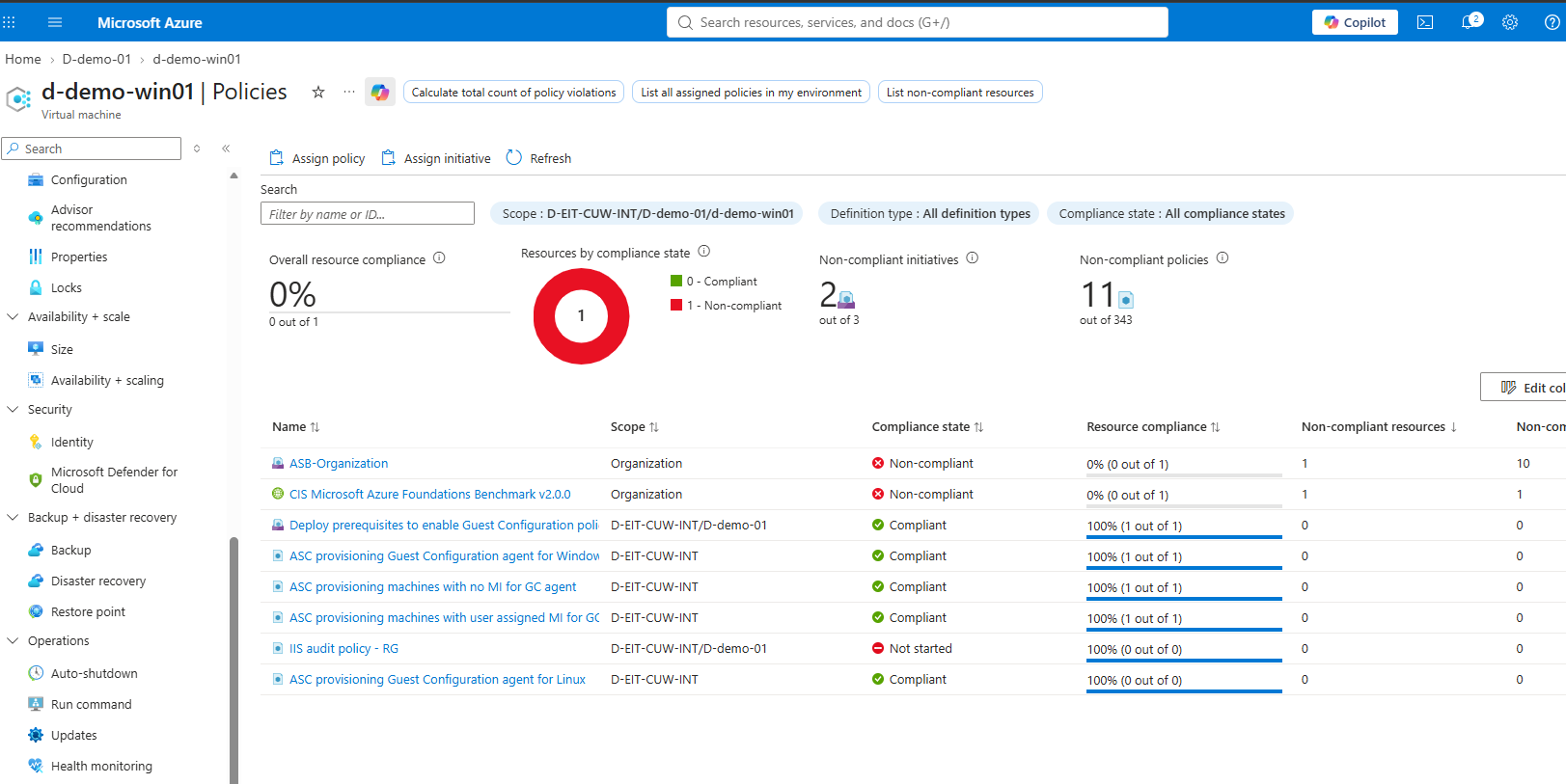
Allow time for the Guest Configuration extension and Azure Policy evaluation. Then check compliance:
Get-AzPolicyState -PolicyDefinitionName 'IIS Deployment policy' -Scope $scope
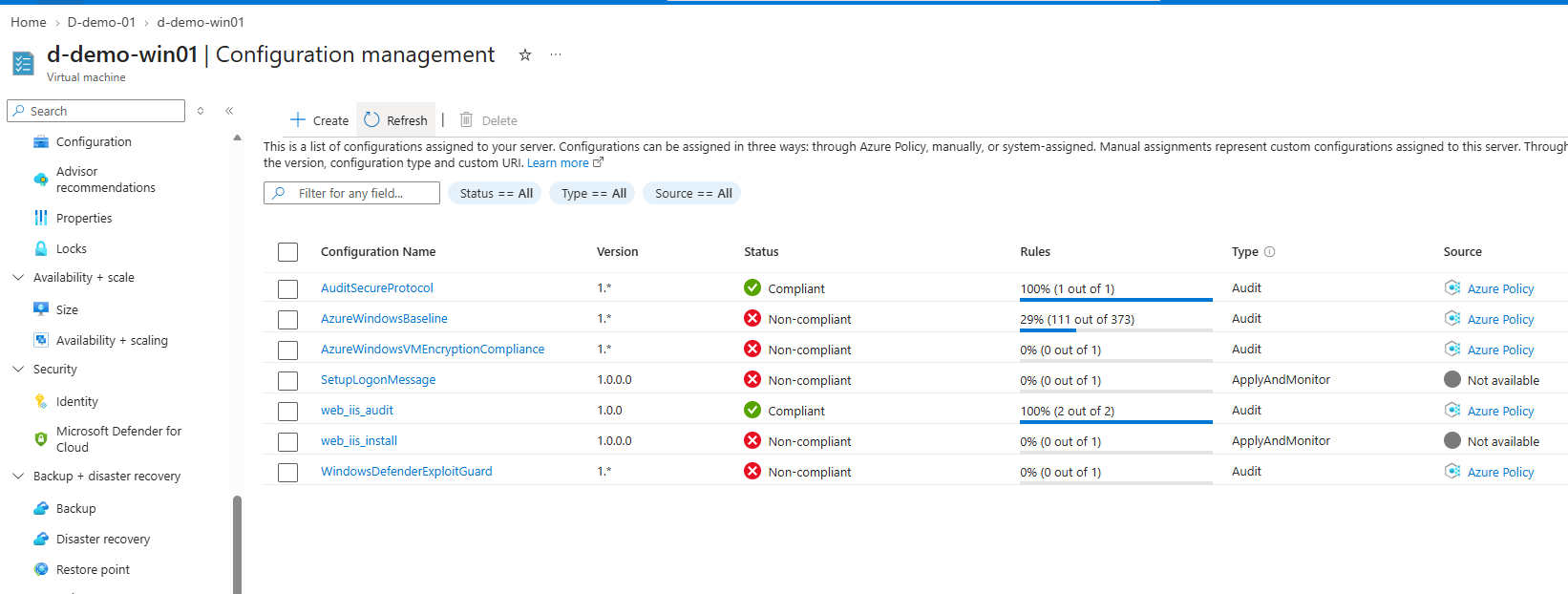
You can also inspect the result in the Azure portal under Policy > Compliance and inspect the Guest Configuration assignment on the virtual machine. A policy assignment may show no result while the extension is still being installed or while the machine cannot reach the package URI.
Troubleshooting checklist
| Symptom | Check |
|---|---|
| Package creation fails | Confirm PowerShell 7, the MOF path, and the required DSC module. |
| Local compliance check fails | Rebuild the MOF and package, then run Get-GuestConfigurationPackageComplianceStatus again. |
| Package download fails | Check HTTPS egress, storage firewall rules, DNS, and SAS expiry. |
| No policy result appears | Check provider registration, the Guest Configuration extension, VM support, and policy evaluation time. |
| Audit reports non-compliance but IIS is not installed | This is expected. Use the deployment policy and ApplyAndAutoCorrect when remediation is intended. |
| A package update is ignored | Publish a new ZIP, update the content URI or policy version, and verify the new policy definition was assigned. |
Summary
The repeatable AzureDay process is: compile dsc-web.ps1, package the MOF with GuestConfiguration, validate and hash the ZIP, upload it to reachable blob storage, generate and publish the audit and deployment policy definitions, and assign one policy to a small test scope. Once the test result is correct, expand the assignment carefully.