
Auto-Documenting DSC v3 Drift and Compliance with DSC-DocsGenerator (CIS Example)
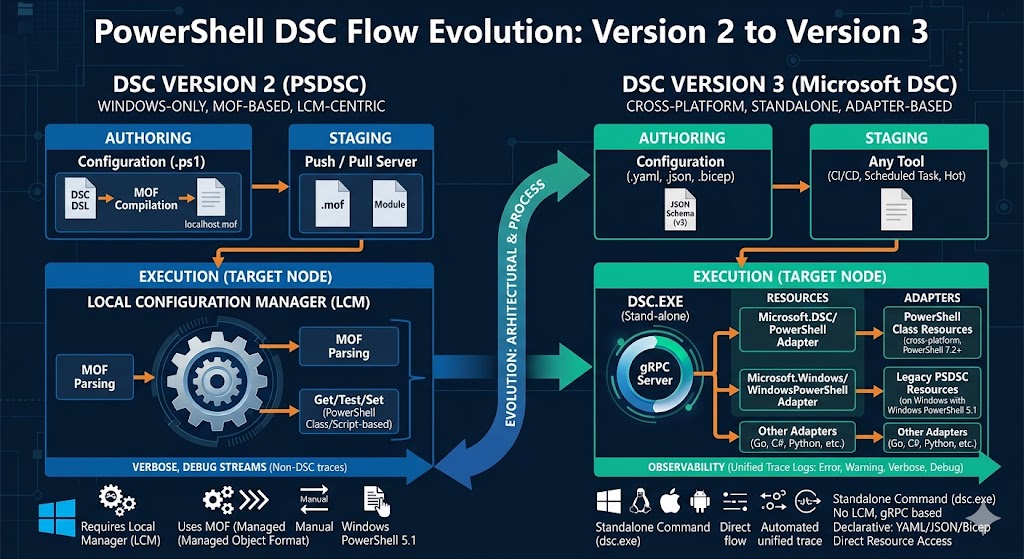
Auto-Documenting DSC v3 Drift and Compliance with DSC-DocsGenerator
Introduction
DSC v3 is excellent at telling you whether a target is in the desired state — but the raw output of dsc config test is JSON intended for tooling, not humans. Auditors, security reviewers, and operations teams need something they can read, share, and attach to a change record: a report that says what was configured, what was actually found on the machine, and which controls drifted.
That is the gap DSC-DocsGenerator fills. It is a small PowerShell module that wraps dsc config test, parses the JSON output, and emits a Markdown report containing:
- A configuration summary (OS, hostname, file, run time, document version).
- A resource overview table with per-control compliance status.
- A detailed desired vs actual state block for every resource.
The module is published to the PowerShell Gallery as DSC-DocsGenerator and the source lives at mimachniak/DSC-DocsGenerator.
This post walks through what the module does, how to install and run it, and shows a real CIS Windows Server 2025 example with drift and compliance points.
Why an Auto-Generated Compliance Report?
DSC v3’s test subcommand returns structured JSON describing, for each resource, whether the system is _inDesiredState, which properties differ, the desired state from the YAML, and the actual state collected from the machine. That JSON is precise but hard to consume.
A Markdown report on top of that JSON gives several practical wins:
| Need | What the report provides |
|---|---|
| Audit evidence | Timestamped file with hostname, OS build, and source YAML name |
| Drift review | Per-control ✅ / ❌ status table with differing property names |
| Remediation triage | Side-by-side desired vs actual JSON for each non-compliant control |
| Change documentation | Single Markdown artifact that can be committed, attached to a ticket, or pasted into a wiki |
The same flow works for any DSC v3 configuration — application baselines, WinRM hardening, ActiveDirectory roles — but a CIS benchmark is the clearest demonstration because it produces a large number of controls with a realistic mix of compliant and non-compliant results.
How the Module Works
The single public command is Invoke-DSCDrifftDocs (note the intentional double f in Drifft — it must be typed exactly).
When invoked, it performs these steps internally:
- Verifies the
dscCLI is installed and onPATH. - Reads the YAML config and checks that the referenced resource types are available.
- Runs
dsc config test --file <ConfigFile>. - Parses the JSON returned by DSC.
- Builds the Markdown report (summary, overview table, per-resource details).
- Writes the report file unless
-WhatIfis used.
That is the whole pipeline: YAML in → DSC test → JSON → Markdown out.
Prerequisites
- PowerShell 5.1 or PowerShell 7+.
-
DSC v3 installed and available on
PATH(dsc --versionworks). Install with:winget install --id Microsoft.DSC - The DSC resources referenced by the YAML config installed. For the CIS examples that is
Microsoft.Windows/Registry(built-in to DSC v3) andSecurityPolicyDsc.
Install the Module
Three options, in order of convenience:
Option 1 — PowerShell Gallery (recommended)
Install-Module -Name DSC-DocsGenerator
Import-Module DSC-DocsGenerator -Force
Option 2 — Clone and import from the repo
git clone https://github.com/mimachniak/DSC-DocsGenerator.git
Import-Module .\DSC-DocsGenerator\module\DSC-DocsGenerator\DSC-DocsGenerator.psd1 -Force
Option 3 — Copy to $env:PSModulePath
Copy the module\DSC-DocsGenerator folder to any path in $env:PSModulePath, then:
Import-Module DSC-DocsGenerator -Force
Verify the command is exported:
Get-Command -Module DSC-DocsGenerator
Command Syntax
Invoke-DSCDrifftDocs `
    -ConfigFile <string> `
    [-OutputFile <string>] `
    [-DocumentVersion <string>] `
    [-ReportTitle <string>] `
    [-PassThru] `
    [-WhatIf] [-Confirm] [-Verbose]
| Parameter | Required | Description |
|---|---|---|
ConfigFile |
Yes | Path to a DSC v3 YAML configuration file. |
OutputFile |
No | Target Markdown file path. If omitted, a timestamped file is generated next to the config. |
DocumentVersion |
No | Version label written into the report. Default: 1.0. |
ReportTitle |
No | Report heading (H1). Default: DSC Configuration Report. |
PassThru |
No | Returns the generated Markdown content as a string. |
WhatIf |
No | Preview actions without writing files. |
Example — CIS Windows Server 2025 Level 1 Member Server
The repository ships with two ready-to-run CIS baselines under dsc-config\:
CIS-w2025-Level1-MemberServer.registry.dsc.yaml— 260 registry controls.CIS-w2025-Level1-MemberServer.securitypolicy.dsc.yaml— 38 account policy, user rights, and security option controls.
1) Generate the registry compliance report
Invoke-DSCDrifftDocs `
    -ConfigFile .\dsc-config\CIS-w2025-Level1-MemberServer.registry.dsc.yaml `
    -OutputFile .\report-example\registry-report.md `
    -ReportTitle "CIS Windows Server 2025 - Registry Compliance" `
    -DocumentVersion "2.0"
2) Generate the security policy report with default output
Invoke-DSCDrifftDocs `
    -ConfigFile .\dsc-config\CIS-w2025-Level1-MemberServer.securitypolicy.dsc.yaml
3) Capture the Markdown in memory (no file written next to the YAML)
$markdown = Invoke-DSCDrifftDocs `
    -ConfigFile .\dsc-config\CIS-w2025-Level1-MemberServer.registry.dsc.yaml `
    -PassThru

$markdown.Length
4) Preview without writing
Invoke-DSCDrifftDocs `
    -ConfigFile .\dsc-config\CIS-w2025-Level1-MemberServer.registry.dsc.yaml `
    -WhatIf
What the Generated Report Looks Like
The full rendered examples live in report-example/. Below are the key sections, taken from the registry baseline run on a freshly built Windows Server 2025 box.
Configuration Summary
The report opens with a fixed metadata block — exactly the information an auditor wants on the first page:
| Property | Value |
|---|---|
| OS | Microsoft Windows Server 2025 Datacenter (Build 26100, 64-bit) |
| Hostname | WIN-3QDVF8G0A7K |
| Configuration File | CIS-w2025-Level1-MemberServer.registry.dsc.yaml |
| Run Date / Time | 2026-06-01 13:21:59 |
| Document Version | 1.0 |
| Total Resources | 260 |
| Compliant | ✅ 32 |
| Non-Compliant | ❌ 228 |
On a default-installed Server 2025 image the registry baseline is 32/260 compliant — exactly what you would expect before any CIS hardening is applied. That ratio becomes the headline KPI you track across remediation runs.
Resource Overview
Below the summary the report lists every control with its CIS reference, status, and DSC type:
| # | Status | Name | Type |
|---|---|---|---|
| 1 | ❌ | 1.1.6 - RelaxMinimumPasswordLengthLimits |
Microsoft.Windows/Registry |
| 2 | ✅ | 2.3.1.2 - LimitBlankPasswordUse |
Microsoft.Windows/Registry |
| 3 | ❌ | 2.3.2.1 - SCENoApplyLegacyAuditPolicy |
Microsoft.Windows/Registry |
| 4 | ✅ | 2.3.2.2 - CrashOnAuditFail |
Microsoft.Windows/Registry |
| … | |||
| 57 | ❌ | 9.1.1 - EnableFirewall |
Microsoft.Windows/Registry |
| 58 | ❌ | 9.1.2 - DefaultInboundAction |
Microsoft.Windows/Registry |
This table is the triage view: filter to ❌ rows and you have a backlog of CIS controls to remediate, each with its benchmark number for traceability.
Per-Resource Drift Detail
For every control the report renders a block with the differing properties and the full desired vs actual JSON. A compliant control:
### 4. 2.3.2.2 - CrashOnAuditFail

| Property | Value |
|----------|-------|
| **Status** | ✅ Compliant |
| **Type** | `Microsoft.Windows/Registry` |

**Desired State**

```json
{
  "_exist": true,
  "keyPath": "HKEY_LOCAL_MACHINE\\SYSTEM\\CurrentControlSet\\Control\\Lsa",
  "valueName": "CrashOnAuditFail",
  "valueData": { "DWord": 0 }
}
```

**Actual State**

```json
{
  "keyPath": "HKEY_LOCAL_MACHINE\\SYSTEM\\CurrentControlSet\\Control\\Lsa",
  "valueName": "CrashOnAuditFail",
  "valueData": { "DWord": 0 }
}
```
A non-compliant control with a value mismatch — CIS 2.3.7.2 Interactive logon: Do not display last user name:
### 12. 2.3.7.2 - DontDisplayLastUserName

| Property | Value |
|----------|-------|
| **Status** | ❌ Non-Compliant |
| **Type** | `Microsoft.Windows/Registry` |
| **Differing Properties** | `valueData` |

**Desired State**

```json
{
  "_exist": true,
  "keyPath": "HKEY_LOCAL_MACHINE\\SOFTWARE\\Microsoft\\Windows\\CurrentVersion\\Policies\\System",
  "valueName": "DontDisplayLastUserName",
  "valueData": { "DWord": 1 }
}
```

**Actual State**

```json
{
  "keyPath": "HKEY_LOCAL_MACHINE\\SOFTWARE\\Microsoft\\Windows\\CurrentVersion\\Policies\\System",
  "valueName": "DontDisplayLastUserName",
  "valueData": { "DWord": 0 }
}
```
And a missing-key drift — CIS 9.1.1 Windows Firewall: Domain: Firewall state not configured at all:
### 57. 9.1.1 - EnableFirewall

| Property | Value |
|----------|-------|
| **Status** | ❌ Non-Compliant |
| **Type** | `Microsoft.Windows/Registry` |
| **Differing Properties** | `_exist`, `valueName`, `valueData` |

**Desired State**

```json
{
  "_exist": true,
  "keyPath": "HKEY_LOCAL_MACHINE\\SOFTWARE\\Policies\\Microsoft\\WindowsFirewall\\DomainProfile",
  "valueName": "EnableFirewall",
  "valueData": { "DWord": 1 }
}
```

**Actual State**

```json
{
  "keyPath": "HKEY_LOCAL_MACHINE\\SOFTWARE\\Policies\\Microsoft\\WindowsFirewall\\DomainProfile",
  "_exist": false
}
```
The Differing Properties row is the most useful piece of metadata: it points straight to which fields drifted (valueData only, vs. the whole key being absent), so you can decide whether the gap is a missed GPO, a wrong value, or a key never created.
The Security Policy Baseline
The second baseline — SecurityPolicyDsc/AccountPolicy, SecurityPolicyDsc/UserRightsAssignment, SecurityPolicyDsc/SecurityOption — produces the same shape of report but exercises a different resource provider. On the same fresh Server 2025 the summary is 26/38 compliant, and the drift blocks include rich examples like 2.2.21 Deny access to this computer from the network:
### 16. 2.2.21 Deny access to this computer from the network

| Property | Value |
|----------|-------|
| **Status** | ❌ Non-Compliant |
| **Type** | `SecurityPolicyDsc/UserRightsAssignment` |
| **Differing Properties** | `Identity`, `Force` |

**Desired State**

```json
{
  "Policy": "Deny_access_to_this_computer_from_the_network",
  "Identity": [ "Guests", "[Local Account|Administrator]" ],
  "Force": true
}
```
The same module, the same command — only the input YAML changes.
Where This Fits in a DSC v3 Workflow
This module is the reporting leg of the lifecycle described in the earlier posts in this series:
- Setting Up WinRM HTTPS Listener with DSC v3 and PowerShell — authoring DSC v3 YAML configurations.
- Deploy and Configure a Windows VM with Bicep and DSC v3 — applying configurations as part of an IaC deployment.
- How to use DSC v3 in Azure DevOps — pipelining the apply step.
Invoke-DSCDrifftDocs plugs into the same pipelines: run it in a scheduled job or release stage after dsc config test, publish the resulting Markdown as a pipeline artifact, and you have a per-host audit trail without writing a single line of custom JSON parsing.
Troubleshooting
dsc not found — Install DSC v3 with winget install --id Microsoft.DSC and confirm with dsc --version.
Missing DSC resources — Install the modules referenced by the YAML (for the CIS examples that is SecurityPolicyDsc) and rerun.
No report written — Check whether -WhatIf was used, and confirm the output folder is writable.
Run with diagnostics — Add -Verbose to see each pipeline step.
Wrap-Up
DSC-DocsGenerator turns the raw JSON output of dsc config test into a Markdown compliance report with summary metrics, a per-control overview, and full desired vs actual state for every resource — in a single command. Run it once against the bundled CIS Windows Server 2025 baselines and you immediately have an audit-quality document showing exactly where the box drifts from the benchmark.
- Module: github.com/mimachniak/DSC-DocsGenerator
- PowerShell Gallery: DSC-DocsGenerator
- Example reports: report-example/
Pull requests and issues are welcome.

Leave a comment