
Deploy and Configure a Windows VM with Bicep and DSC v3
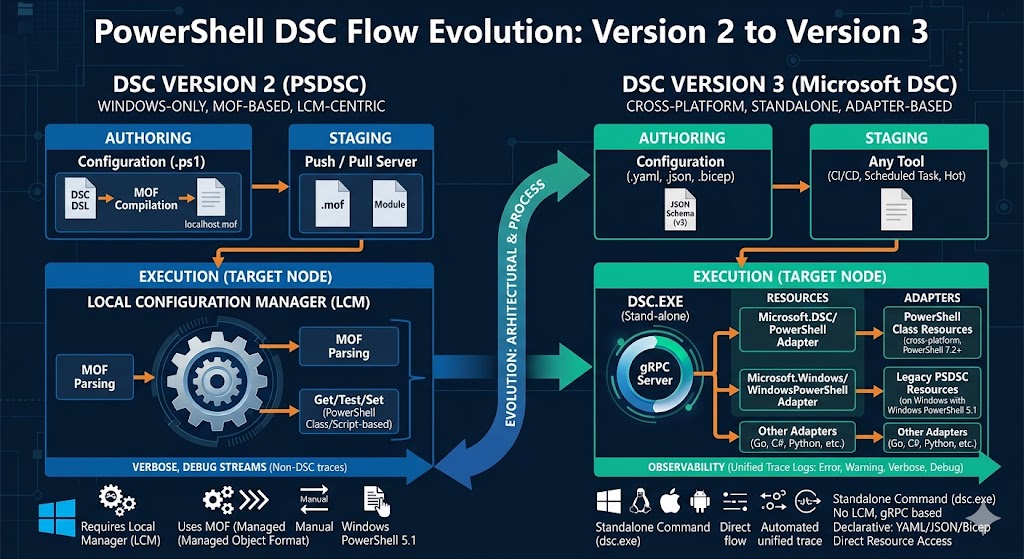
Deploy and Configure a Windows VM with Bicep and DSC v3
Introduction
Infrastructure as Code (IaC) covers not only resource provisioning but also the initial operating system configuration. Bicep handles the Azure resources; DSC v3 handles the Windows configuration. Combining them in a single deployment means the VM is provisioned and correctly configured before the deployment finishes.
This post walks through deploying a Windows Server 2025 Azure VM with Bicep and then using two DSC v3 YAML documents — served from Azure Blob Storage — to:
- Create a self-signed certificate bound to the computer name.
- Configure a secure WinRM HTTPS listener on port 5986.
The DSC YAML files are covered in detail in the companion post Setting Up WinRM HTTPS Listener with DSC v3 and PowerShell.
Architecture Overview
┌──────────────────────────────────────────────────────┐
│  Bicep deployment (New-AzResourceGroupDeployment)    │
│                                                      │
│  1. Storage Account + container (dsc)                │
│  2. VNet / NSG / NIC / Public IP                     │
│  3. Windows Server 2025 VM                           │
│  4. Run Command: install DSC v3                      │
│  5. Run Command: apply DSC configs from blob         │
└──────────────────────────────────────────────────────┘
          │                        │
          ▼                        ▼
   Azure Blob Storage       VM (after deploy)
   dsc/                     ├─ DSC v3 installed
   ├─ ps-script-            ├─ Self-signed cert
   │  certificate.          │  in LocalMachine\My
   │  dsc.yaml              └─ WinRM HTTPS :5986
   └─ winrm.dsc.yaml
Prerequisites
- Azure CLI or Azure PowerShell installed and authenticated.
- An Azure subscription and a resource group.
- The DSC YAML files locally (or cloned from the companion repository).
Step 1 — Prepare the DSC YAML Documents
The configuration is split into two focused DSC v3 YAML documents. Place both files in a local folder before uploading them.
ps-script-certificate.dsc.yaml
Uses the Microsoft.DSC.Transitional/PowerShellScript resource to generate a self-signed certificate in Cert:\LocalMachine\My if one does not already exist for the current computer name.
$schema: https://aka.ms/dsc/schemas/v3/bundled/config/document.json

metadata:
  Microsoft.DSC:
    requiredSecurityContext: current
resources:
  - type: Microsoft.DSC.Transitional/PowerShellScript
    name: CreateSelfSignedCertificate
    properties:
      GetScript: |
          $dnsName = $env:COMPUTERNAME
          $cert = Get-ChildItem Cert:\LocalMachine\My |
              Where-Object {
                  $_.Subject -eq "CN=$dnsName"
              }

          return @{
              Result = if ($cert) { "Present" } else { "Absent" }
              Thumbprint = if ($cert) { $cert.Thumbprint } else { $null }
          }
      TestScript: |
          $dnsName = $env:COMPUTERNAME
          $cert = Get-ChildItem Cert:\LocalMachine\My |
              Where-Object {
                  $_.Subject -eq "CN=$dnsName"
              }

          return ($null -ne $cert)
      SetScript: |
        $dnsName = $env:COMPUTERNAME
        $cert = Get-ChildItem Cert:\LocalMachine\My |
              Where-Object {
                  $_.Subject -eq "CN=$dnsName"
              }
        if (-not $cert) {
            $cert = New-SelfSignedCertificate -DnsName $dnsName -CertStoreLocation "Cert:\LocalMachine\My" -KeyLength 2048 -HashAlgorithm SHA256
            }
        return @{ Thumbprint = $cert.Thumbprint }
The SetScript returns the certificate thumbprint in the afterState output. The Bicep run command extracts it and forwards it as a parameter to the next document.
winrm.dsc.yaml
Uses native DSC v3 resources (Microsoft.Windows/Registry, Microsoft.Windows/FirewallRuleList, Microsoft.Windows/Service) to write the WSMAN listener registry keys, open port 5986, and ensure the WinRM service is running.
$schema: https://aka.ms/dsc/schemas/v3/bundled/config/document.json

metadata:
  Microsoft.DSC:
    requiredSecurityContext: restricted

parameters:
  certThumbprint:
    type: string
    description: Thumbprint of the certificate to use for the WinRM HTTPS listener.
    defaultValue: "341B58BC25D182D844B64BF7FC52D1D751625960"

resources:
- name: WinRM HTTPS listener - Address
  type: Microsoft.Windows/Registry
  properties:
    _exist: true
    keyPath: HKEY_LOCAL_MACHINE\SOFTWARE\Microsoft\Windows\CurrentVersion\WSMAN\Listener\*+HTTPS
    valueName: Address
    valueData:
      String: "*"

- name: WinRM HTTPS listener - Transport
  type: Microsoft.Windows/Registry
  properties:
    _exist: true
    keyPath: HKEY_LOCAL_MACHINE\SOFTWARE\Microsoft\Windows\CurrentVersion\WSMAN\Listener\*+HTTPS
    valueName: Transport
    valueData:
      String: "HTTPS"

- name: WinRM HTTPS listener - Port
  type: Microsoft.Windows/Registry
  properties:
    _exist: true
    keyPath: HKEY_LOCAL_MACHINE\SOFTWARE\Microsoft\Windows\CurrentVersion\WSMAN\Listener\*+HTTPS
    valueName: Port
    valueData:
      DWord: 5986

- name: WinRM HTTPS listener - certThumbprint
  type: Microsoft.Windows/Registry
  properties:
    _exist: true
    keyPath: HKEY_LOCAL_MACHINE\SOFTWARE\Microsoft\Windows\CurrentVersion\WSMAN\Listener\*+HTTPS
    valueName: certThumbprint
    valueData:
      String: "[parameters('certThumbprint')]"

- name: WinRM HTTPS listener - hostname
  type: Microsoft.Windows/Registry
  properties:
    _exist: true
    keyPath: HKEY_LOCAL_MACHINE\SOFTWARE\Microsoft\Windows\CurrentVersion\WSMAN\Listener\*+HTTPS
    valueName: hostname
    valueData:
      String: "[envvar('COMPUTERNAME')]"

- name: WinRM firewall rules
  type: Microsoft.Windows/FirewallRuleList
  properties:
    rules:
      - name: Windows Remote Management (HTTPS-In)
        description: Allow inbound TCP traffic on port 5986 for Windows Remote Management (HTTPS-In).
        applicationName: System
        protocol: 6
        localPorts: '5986'
        direction: Inbound
        action: Allow
        enabled: true
        profiles:
          - Domain
          - Private

- name: WinRM Service
  type: Microsoft.Windows/Service
  properties:
    name: WinRM
    _exist: true
    status: Running
    startType: Automatic
Step 2 — Create the Azure Storage Account and Blob Container
The Bicep template expects the YAML files to be reachable via an HTTPS URL (anonymous read or SAS token). Create a dedicated storage account and container before running the deployment.
Using Azure PowerShell
$rg            = 'demo-dsc-bicep-rg'
$location      = 'West Europe'
$storageName   = 'dscconfigstore'   # must be globally unique
$containerName = 'dsc'

# Create resource group
New-AzResourceGroup -Name $rg -Location $location

# Create storage account (Standard LRS, public blob read enabled)
$sa = New-AzStorageAccount `
    -ResourceGroupName $rg `
    -Name $storageName `
    -Location $location `
    -SkuName Standard_LRS `
    -Kind StorageV2 `
    -AllowBlobPublicAccess $true

# Create container with anonymous blob-level read access
$ctx = $sa.Context
New-AzStorageContainer -Name $containerName -Context $ctx -Permission Blob
Security note: Anonymous public blob access is convenient for demos. For production deployments, disable public access and supply a short-lived SAS token to the Bicep parameters instead.
Step 3 — Upload the DSC YAML Files
Yaml files can be found here: DSC Yaml configurations
$ctx = (Get-AzStorageAccount -ResourceGroupName $rg -Name $storageName).Context

Set-AzStorageBlobContent `
    -File   '.\ps-script-certificate.dsc.yaml' `
    -Container $containerName `
    -Blob   'ps-script-certificate.dsc.yaml' `
    -Context $ctx `
    -Force

Set-AzStorageBlobContent `
    -File   '.\winrm.dsc.yaml' `
    -Container $containerName `
    -Blob   'winrm.dsc.yaml' `
    -Context $ctx `
    -Force
Note the blob base URL — you will need it in the next step:
https://<your-storage-account>.blob.core.windows.net/dsc/
Step 4 — Review and Update main.bicep
The full Bicep template provisions the network stack, the VM, and two Microsoft.Compute/virtualMachines/runCommands resources that install DSC v3 and apply the configuration.
Update the blob URLs
Locate the runCommandsApplyDSC resource in main.bicep and replace the placeholder URLs with your actual storage account blob URLs:
Bicep code main:
# Replace with your storage account url

$contentYamlCert = Invoke-RestMethod -Uri "https://<your-storage-account>.blob.core.windows.net/dsc/ps-script-certificate.dsc.yaml"

# Replace with your storage account url

$contentYamlWinrm = Invoke-RestMethod -Uri "https://<your-storage-account>.blob.core.windows.net/dsc/winrm.dsc.yaml"
Step 5 — Deploy with Bicep
Bicep main file for this example with all steps can be found here: bicep-demo-dsc
$exampleRG    = 'demo-dsc-bicep-rg'
$adminUser    = 'godmode'
$location     = 'West Europe'

New-AzResourceGroup -Name $exampleRG -Location $location

New-AzResourceGroupDeployment `
    -ResourceGroupName $exampleRG `
    -TemplateFile      ./main.bicep `
    -adminUsername     $adminUser `
    -Verbose
You will be prompted for adminPassword (minimum 12 characters).
How It Works — Run Command Walk-through
Run Command 1: DSC-Install
Downloads the DSC v3 ZIP from the GitHub releases page, extracts it to C:\Program Files\DSC\<version>, and adds the directory to the system PATH.
Key parameters passed from Bicep:
| Parameter | Value |
|---|---|
dscVersion |
3.2.0 |
dscArch |
x86_64-pc-windows-msvc |
The download URL is constructed as:
https://github.com/PowerShell/DSC/releases/download/v<version>/DSC-<version>-<arch>.zip
Bicep code:
resource runCommandsInstallDSC 'Microsoft.Compute/virtualMachines/runCommands@2025-11-01' = {
  parent: vm
  name: 'DSC-Install'
  location: location
  properties: {
    timeoutInSeconds: 900
    treatFailureAsDeploymentFailure: true
    parameters: [
      {
        name: 'dscVersion'
        value: '3.2.0'
      }
      {
        name: 'dscArch'
        value: 'x86_64-pc-windows-msvc'
      }

    ]
    source: {
      script: '''
          #Requires -RunAsAdministrator

          param(
              [string]$dscVersion,
              [string]$dscArch
          )
          $downloadUrl = "https://github.com/PowerShell/DSC/releases/download/v$dscVersion/DSC-$dscVersion-$dscArch.zip"
          $installDir  = "C:\Program Files\DSC\$dscVersion"
          $zipPath     = Join-Path $env:TEMP "DSC-$dscVersion-$dscArch.zip"
          $logPath     = Join-Path $env:TEMP "DSC-$dscVersion-install_$(Get-Date -Format 'yyyyMMdd_HHmmss').log"

          $ProgressPreference = 'SilentlyContinue'

          function Write-Log {
              param([string]$Message, [ValidateSet('INFO','WARN','ERROR')]$Level = 'INFO')
              $entry = "[$(Get-Date -Format 'yyyy-MM-dd HH:mm:ss')] [$Level] $Message"
              Write-Host $entry
              Add-Content -Path $logPath -Value $entry
          }

          Write-Log "Log file: $logPath"
          Write-Log "Install directory: $installDir"
          Write-Log "Download URL: $downloadUrl"

          # Download
          Write-Log "Downloading DSC v$dscVersion..."
          try {
              Invoke-WebRequest -Uri $downloadUrl -OutFile $zipPath -UseBasicParsing
              Write-Log "Download completed: $zipPath"
          } catch {
              Write-Log "Download failed: $_" -Level ERROR
              exit 1
          }

          # Extract
          if (-not (Test-Path $installDir)) {
              New-Item -ItemType Directory -Path $installDir -Force | Out-Null
              Write-Log "Created directory: $installDir"
          }
          Write-Log "Extracting to $installDir..."
          try {
              Expand-Archive -Path $zipPath -DestinationPath $installDir -Force
              Write-Log "Extraction completed."
          } catch {
              Write-Log "Extraction failed: $_" -Level ERROR
              exit 1
          }

          # Add to system PATH if not already present
          $currentPath = [Environment]::GetEnvironmentVariable('Path', 'Machine')
          if ($currentPath -split ';' -notcontains $installDir) {
              Write-Log "Adding $installDir to system PATH..."
              [Environment]::SetEnvironmentVariable('Path', "$currentPath;$installDir", 'Machine')
              Write-Log "System PATH updated. Restart your shell to apply changes."
          } else {
              Write-Log "$installDir is already in the system PATH." -Level WARN
          }

          # Cleanup temp file
          Remove-Item -Path $zipPath -Force
          Write-Log "Removed temporary file: $zipPath"

          Write-Log "DSC v$dscVersion installed successfully."
          Write-Log "Full log saved to: $logPath"

      '''

    }
  }
}
Run Command 2: DSC-Configuration
Runs after DSC-Install (dependsOn). It:
- Adds the DSC install directory to the current session PATH so
dsc.exeresolves immediately. - Downloads
ps-script-certificate.dsc.yamlfrom Blob Storage and pipes it todsc config set --file -, capturing the JSON output. - Extracts the certificate thumbprint from the DSC
afterStateoutput. - Builds an inline parameters JSON block containing the thumbprint.
- Downloads
winrm.dsc.yamland applies it withdsc config --parameters <json> set --file -.
resource runCommandsApplyDSC 'Microsoft.Compute/virtualMachines/runCommands@2025-11-01' = {
  parent: vm
  name: 'DSC-Configuration'
  location: location
  properties: {
    timeoutInSeconds: 900
    treatFailureAsDeploymentFailure: true
    parameters: [
      {
        name: 'dscInstallDir'
        value: '3.2.0'
      }
    ]
    source: {
      script: '''

        param(
          [string]$dscInstallDir
        )

        $dscInstallDir = "C:\Program Files\DSC\$dscInstallDir"
        Write-Host "DSC for certificate "

        # Add DSC install dir to current user PATH if not already present
        $userPath = [Environment]::GetEnvironmentVariable('Path', 'User')
        if ($userPath -split ';' -notcontains $dscInstallDir) {
            [Environment]::SetEnvironmentVariable('Path', "$userPath;$dscInstallDir", 'User')
            Write-Host "Added $dscInstallDir to user PATH."
        }
        # Also update the current session so dsc.exe is resolvable immediately
        if ($env:PATH -split ';' -notcontains $dscInstallDir) {
            $env:PATH = "$env:PATH;$dscInstallDir"
        }


        $contentYamlCert = Invoke-RestMethod -Uri "https://<your-storage-account>.blob.core.windows.net/dsc/ps-script-certificate.dsc.yaml"
        $result = $contentYamlCert | dsc config set --file - --output-format pretty-json
        $result = $result | ConvertFrom-Json

        $thumbprint = if ($result.results.result.afterState.output -is [System.Array]) {
            $result.results.result.afterState.output[0].Thumbprint
        } else {
            $result.results.result.afterState.output.Thumbprint
        }

        if (-not $thumbprint) {
            throw "Thumbprint was not found in DSC output."
        }


        Write-Host "DSC for certificate Thumbprint: " $thumbprint

        $inlineParams = @{
            parameters = @{
                certThumbprint = $thumbprint
            }
        } | ConvertTo-Json

        # dsc config --parameters $inlineParams get --file .\winrm.dsc.yaml
        # dsc config --parameters $inlineParams test --file .\winrm.dsc.yaml

        Write-Host "DSC - winrm HTTPS setup"

        $contentYamlWinrm = Invoke-RestMethod -Uri "https://<your-storage-account>.blob.core.windows.net/dsc/winrm.dsc.yaml"

        $contentYamlWinrm | dsc config --parameters $inlineParams set --file -


      '''

    }
  }
  dependsOn: [
    runCommandsInstallDSC
  ]
}
Verifying the Result
After the deployment completes, RDP into the VM and run:
# Check WinRM listener
Get-WSManInstance -ResourceURI winrm/config/listener -Enumerate

# Confirm the HTTPS listener is present
winrm enumerate winrm/config/listener
You should see an HTTPS listener on port 5986 with the thumbprint of the self-signed certificate.
Summary
| Step | Tool | What happens |
|---|---|---|
| 1 | Local | Prepare DSC YAML documents |
| 2 | Azure PowerShell / Portal | Create Storage Account and container |
| 3 | Azure PowerShell | Upload YAML blobs |
| 4 | Text editor | Update blob URLs in main.bicep |
| 5 | Azure PowerShell | Run New-AzResourceGroupDeployment |
| Auto | Bicep Run Command | Install DSC v3 on VM |
| Auto | Bicep Run Command | Apply certificate + WinRM config via DSC v3 |
This pattern is composable: swap the YAML documents for any other DSC v3 configuration and the same Bicep skeleton handles the bootstrap and delivery.
Related Posts
- Setting Up WinRM HTTPS Listener with DSC v3 and PowerShell
- How to Use AzureDevOpsDscv3 in Azure DevOps Pipelines

Leave a comment